RTLS Studio 3.5 pairing app
As stated in the Product Tour for the latest RTLS Studio version 3.5, we addressed the desire or our end users to be able to create and manage pairings quickly and seamlessly. Learning from the success stories from the delivered projects in the past, we decided to integrate a standalone Trackable pairing app into the RTLS Studio. The app is accessible via http://RTLS_STUDIO_IP/trackables [e.g. 192.168.225.2/trackables] and offers following features:
If you have any question on accessing or activating the pairing app, reach out to our Customer Experience team for assistance → How to Make a Support Ticket.


How to activate/connect your pairing app with RTLS Studio?
Step 1: Accessing the Activation page
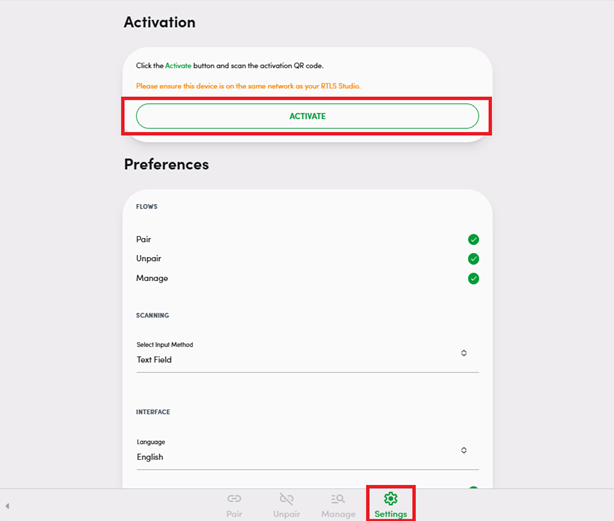
- Go to the following page: http://RTLS_STUDIO_IP/trackables/tabs/settings
- Make sure, you’re in the „Settings“ section
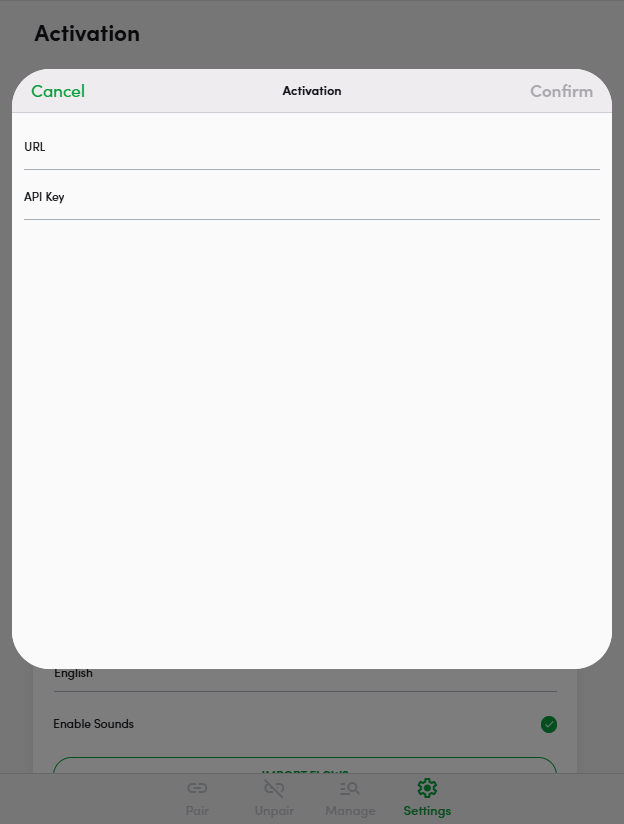
- Click on "Activate" button after which a following window should pop-up
Step 2: Accessing the API Key
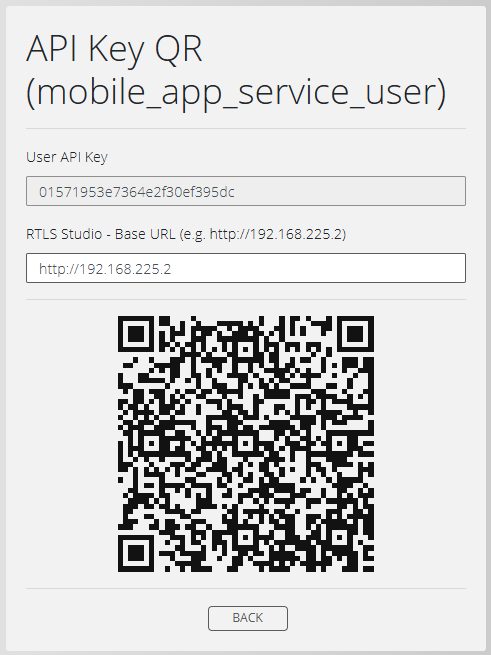
- Navigate to the User Management section in RTLS Studio.
- Select the Users tab.
- Locate the user who has API access rights and for whom you want to use as an application user.
- Click on the API Key button, represented by a QR code icon, to generate the QR code.
- Note: Make sure that the selected user has at least "trackables_service" user role

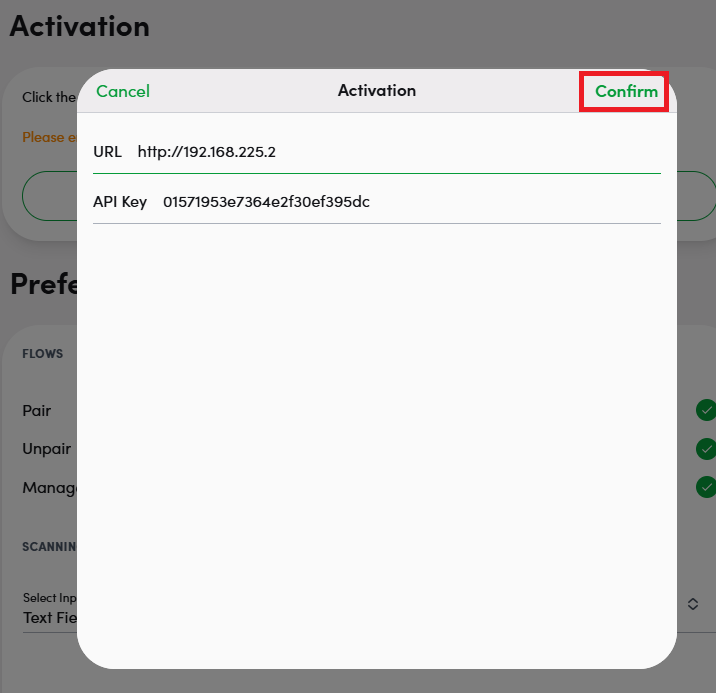
Step 3: Use the listed credentials (User API Key and RTLS Studio Base URL) for pairing app activation
- Insert the listed credentials from RTLS Studio User Management to the Activation window in the Pairing app and press "Confirm"
Activation is saved „per browser“ so if any new pairing device is introduced into the system, the activation needs to be repeated on this new device. Contact support@sewio.net to get more information.
Setting the Input Method in Preferences tab
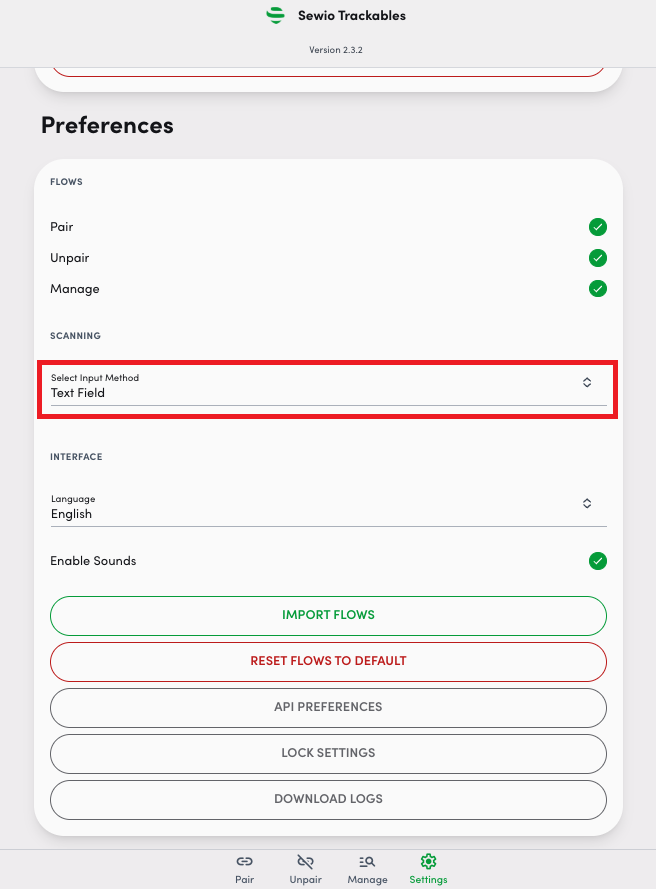
Input method for the tag MAC and Trackable can be changed in the Preferences tab of the "Settings" section. There is an option to select:
- Text field - Best suited for a small number of trackable operations (pairing/unpairing) and low-frequency repetition e.g. one time pairing
- HW scanner - Better suited for a large volume of trackable operations (pairing/unpairing) and frequent changes e.g. multiple times per day
- Selecting the HW Scanner as an Input Method works best with standard USB cord barcode / QR code readers that supplements the keyboard