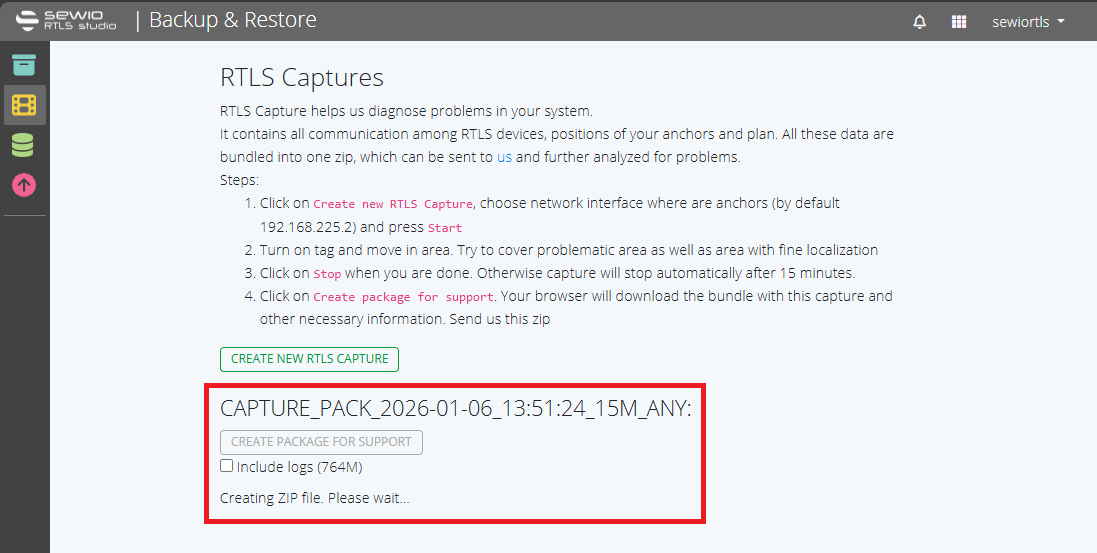
Creating a Capture
The RTLS Capture feature provides a highly efficient way to troubleshoot and analyze real-world RTLS installations by generating a capture file. This file contains all communication between the tags, anchors and the RTLS Server (both on sync and blink layer).
A key advantage of RTLS Capture is its suitability for remote support. Troubleshooting does not need to be performed by an engineer directly at the customer site, nor does it require direct access to the RTLS Server. The capture file allows support teams to replay the exact system behavior at the time of the incident by accurately reproducing the real deployment conditions offline. After the adequate capture analysis, further actions can be advised.
This approach significantly simplifies troubleshooting, reduces on-site intervention, and enables faster and more professional support of RTLS projects.
Whenever you are creating the ticket on Sewio Support Desk, please consider sharing a capture file with description of your issue.
Creating a Capture file
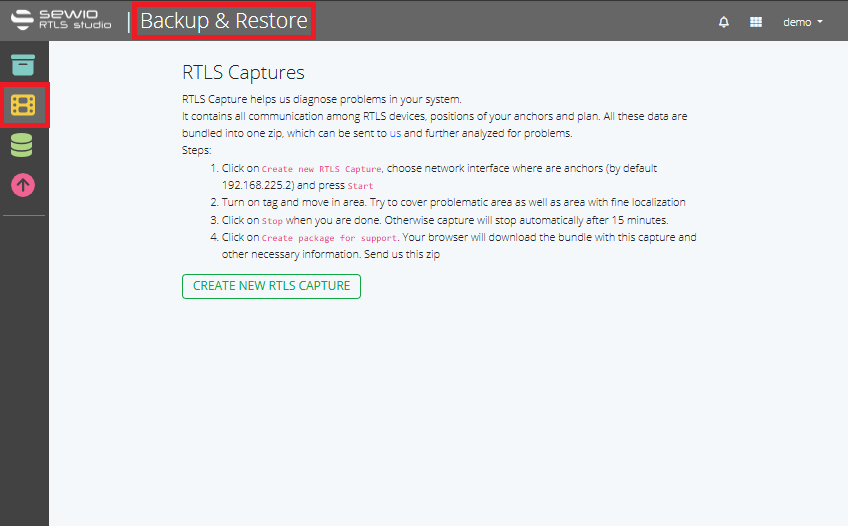
1. Go to the section Backup & Restore in the main menu of RTLS Studio and click on the RTLS Captures (yellow icon).
2. By clicking on CREATE NEW RTLS CAPTURE button, following option box will appear. Capture length can be adjusted up to 480minutes. Interface can be changed as well, we recommend sticking to the default one (any:Pseudo-device that captures on all interfaces)
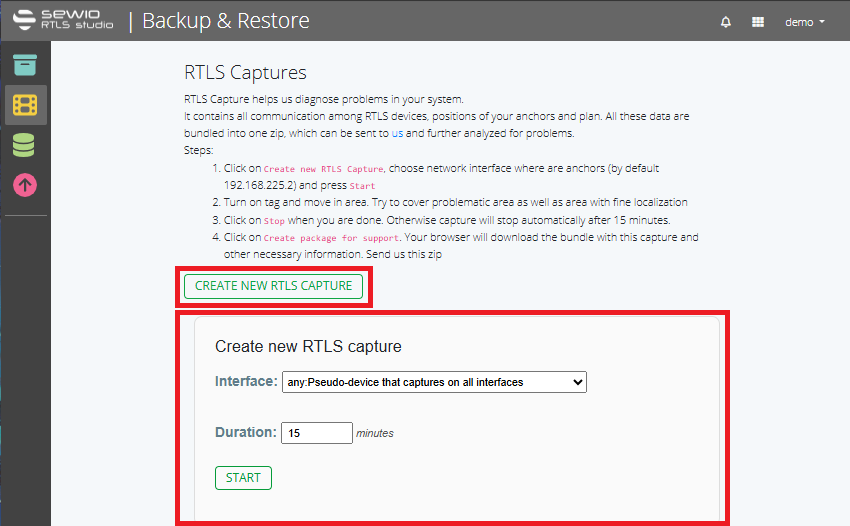
The option to set capture Duration is available only from RTLS Studio version 3.5 and newer. With older versions of the RTLS Studio, the interface needs to be selected manually before pressing the START button and capture length is limited to 15 minutes.
3. By pressing START, the recording begins. If you are experiencing an issue that needs to be analyzed, ensure that you can reproduce it while the recording is active.
Optionally consider recording a video of the issue simultaneously with the RTLS Capture to have the timestamps of real-world events that can be assigned to any unusual system behavior.
4. The recording can be stopped at any time by pressing the STOP button. Otherwise, it will automatically stop after the configured Duration, or—if you are using RTLS Studio version 3.4 or older - after 15 minutes.
5. Select the recorded capture and download it using the CREATE PACKAGE FOR SUPPORT button. You may optionally include the logs; however, if the database contains a large amount of historical data, this is not recommended.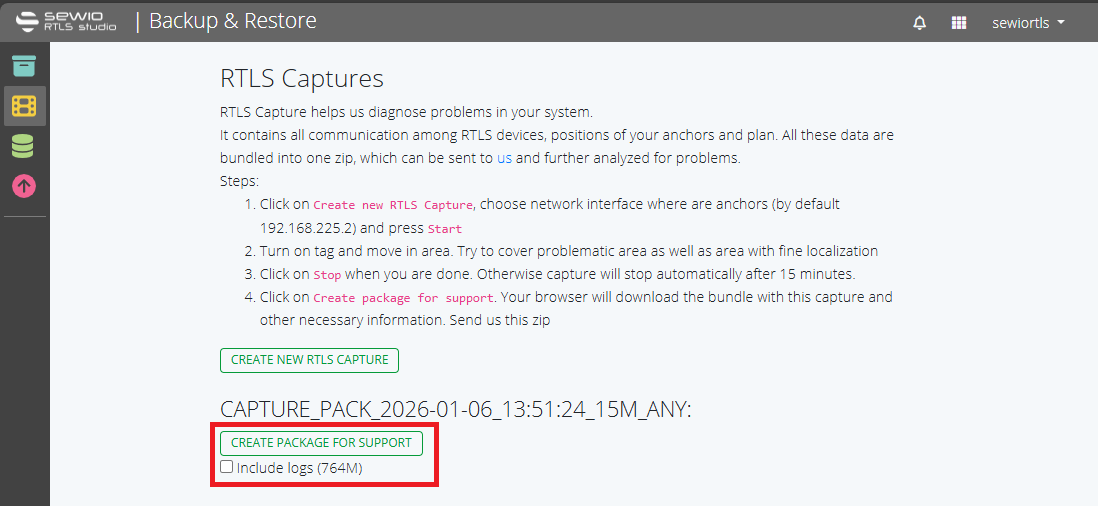
6. Share the .zip file via service desk in Partner Portal. If size exceeds 30 MB you might need to share it via external file sharing service.